Get notified when someone visits your website.
VisitorPing can show visits in a live website dashboard and send an iPhone notification when an arrival or configured high-intent action qualifies for an alert. Add the tracking script to your website, connect your phone, and choose the visits you want to hear about. No chat widget is required.
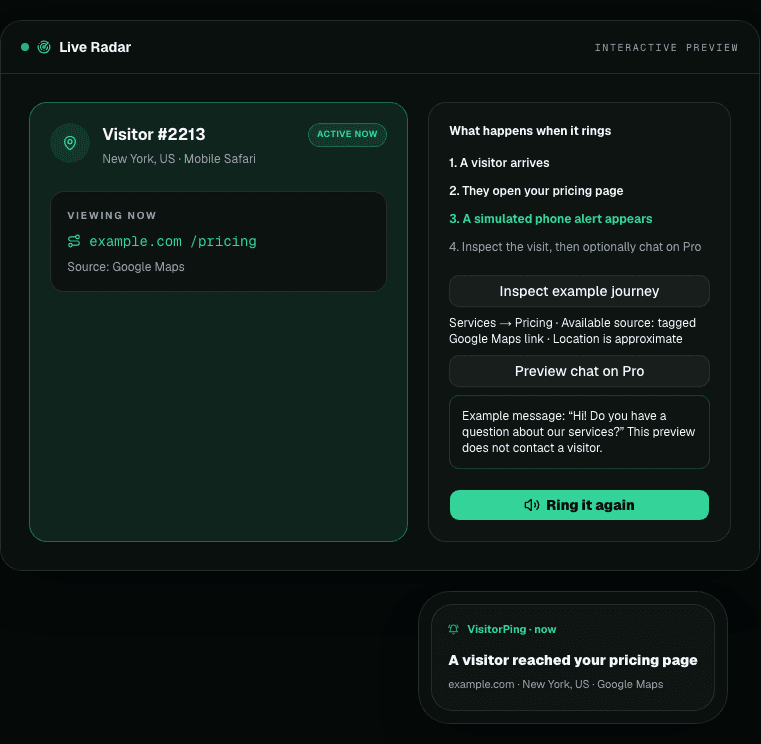
What does a website visitor notification show?
An alert can show the website or page visited, an available referral source, approximate location, and the activity that triggered it. Open the visitor journey to understand the pages viewed and whether the browser has returned.
For example, a pricing-page visit after a services page can be worth inspecting. It is a behavior signal, not evidence that the visitor is ready to buy. Anonymous visits are not automatically names, email addresses, or phone numbers. Contact details appear when they have been shared through a configured identity-capture flow.
How to set up visitor notifications
You need access to add a script or plugin to your website. Your visitors do not need to install an app. The iPhone companion is for you, the website owner.
- • 1. Create your VisitorPing account, add your website, and copy its installation snippet or Site Key.
- • 2. Install the script once. On WordPress, use the connector and paste the Site Key in Settings → VisitorPing. For other platforms, follow the installation instructions for your website.
- • 3. Open your site in a separate logged-out or private window, complete any required consent, and confirm the test visit in the VisitorPing dashboard.
- • 4. Install the iPhone companion and connect the same account, or use the pairing code from Mobile App in the web workspace. Allow iOS notifications.
- • 5. In the app’s Settings, check the selected websites, arrival and hot-lead preferences, sounds, and quiet hours. Make a test visit that qualifies for those settings.
Choose alerts you can actually use
On a quiet website, arrival notifications can help you notice that someone has arrived after a campaign or referral. On a busier website, start with the high-intent actions you have configured instead of treating every visit as equally important.
The number of alerts is not a success metric. A useful setup gives you context you can act on without interrupting you for activity you cannot do anything about.
- • Local business: inspect whether visits reach your service and contact pages, and check whether an enquiry follows.
- • SaaS: inspect a returning browser’s pricing and integration-page journey; follow up when contact details have been shared.
- • Store: inspect product and checkout activity to understand interest, without assuming an anonymous visitor can be contacted.
- • Agency: choose which client websites should alert your phone, and exclude your own setup tests when reviewing results.
What should you do after an alert?
First, inspect the visit rather than immediately treating it as a lead. Check the page sequence, source, and whether the visitor submitted an enquiry or shared contact details. If there is a genuine enquiry, use that context in your response.
If the visit remains anonymous, you can still compare which campaigns bring relevant activity and whether people reach useful pages. You cannot assume a phone notification creates a way to contact that person.
Keep the web dashboard as your record of activity. Use notifications as a prompt to look, not a substitute for measuring enquiries, installations, or sales.
Why am I not receiving website visitor alerts?
Check the dashboard first. If there is no visit there, investigate the website installation before changing phone settings. If the visit appears in the dashboard, focus on alert eligibility and device delivery.
- • No dashboard activity: verify the Site Key, website selection, consent flow, and whether caching or an extension prevents the tracker from loading.
- • Testing as an administrator: WordPress excludes logged-in users who can edit posts by default. Use a logged-out window; cached pages can behave differently.
- • Activity appears, but no phone alert: check that the phone is connected to the same account and website, the event matches your alert preferences, and quiet hours are not suppressing it.
- • Phone settings: check notification permission, Focus settings, and connectivity. Delivery also depends on the operating system and push service; there is no guaranteed arrival time.
Do I need the app, a chat widget, or a new analytics setup?
You can use VisitorPing’s web dashboard without an iPhone. Install the companion only if you want its mobile view and push alerts. No chat widget is required for visitor tracking and notifications.
You can keep your existing analytics. Live visits answer “what is happening now?” while longer-term reports help you compare traffic and conversion trends.
These alerts notify you about activity that already reached your website. They do not generate website traffic by themselves. For installation steps, use the WordPress guide linked above or the instructions in your VisitorPing workspace.
See the next visit on your own website.
Start with the live web dashboard, then connect your iPhone for alerts while you are away from your desk.